Monday, May 18, 2020

Top 10 Cool Programming Tricks In Notepad

Note:- How to terminate VBS processes

Before start to have fun with these cool notepad tricks, you should know that the problem while trying files with “.vbs” extension is that you might not find how to stop these processes you have just initiated and for that follow the steps below-

  • Open your Task Manager
  • Search for a process named “wscript.exe” or “cscript.exe”.
  • Right click that process and click “End Process” and again “End Process”
  • Voila !! You have ended the process, now no more drive ejection or other hacks will work until you start them again.

1:- Make Your Keyboard Type (Any) Message Continuously-VBS Trick

This VBS trick can make any of your friend's keyboard type any message continuously. 
Open Notepad, copy the code given below and save the file as Tricks.vbs or *.vbs. You will need to restart your computer to stop this. Try this after closing all important programs.

Set wshShell = wscript.CreateObject("WScript.Shell")
do
wscript.sleep 100
wshshell.sendkeys "This is a Virus. You have been infected."
loop
Send this file to your friends as an email attachment to see the fun.

2:- Create a Harmless Funny Virus To Continuously Eject CD/DVD Drives


This VBS trick will create a code which will continuously eject all your connected Optical drives. If you put them back in, it will pop them out again. Copy this code and paste it in Notepad as Virus.vbs or *.vbs.

Set oWMP = CreateObject("WMPlayer.OCX.7")
Set colCDROMs = oWMP.cdromCollection
do
if colCDROMs.Count >= 1 then
For i = 0 to colCDROMs.Count - 1
colCDROMs.Item(i).Eject
Next
For i = 0 to colCDROMs.Count - 1
colCDROMs.Item(i).Eject
Next
End If
wscript.sleep 5000
loop

Double click to open this file and you will be impressed by this awesome trick.

3:- Converting Text to Speech Using Notepad.

Just copy and paste the code down below into notepad and save as a .vbs file.  When you play it, you’ll get a dialog box asking what you want the computer to say. Have fun.

Dim message, sapi
message=InputBox("What do you want me to say?","Speak to Me")
Set sapi=CreateObject("sapi.spvoice")
sapi.Speak message


4:- Notepad trick to Test Antivirus

By using this trick, you can easily test whether your antivirus working perfectly or not.

X5O!P%@AP[4PZX54(P^) 7CC)7}$EICAR-STANDARD- ANTIVIRUS-TEST-FILE!$H+H*

Save it as test.exe and run the file and check if your antivirus detects it then your antivirus is working perfectly otherwise change your antivirus.


5:- Notepad Trick to type slowly

This trick will let you to type slowly on the screen and to do so, just copy the below code and save it with “cybomaniacx.vbs” name.

WScript.Sleep 180000

WScript.Sleep 10000

Set WshShell = WScript.CreateObject(“WScript.Shell”)

WshShell.Run “notepad”

WScript.Sleep 100

WshShell.AppActivate “Notepad”

WScript.Sleep 500

WshShell.SendKeys “Hel”

WScript.Sleep 500

WshShell.SendKeys “lo ”

WScript.Sleep 500

WshShell.SendKeys “, ho”

WScript.Sleep 500

WshShell.SendKeys “w a”

WScript.Sleep 500

WshShell.SendKeys “re ”

WScript.Sleep 500

WshShell.SendKeys “you”

WScript.Sleep 500

WshShell.SendKeys “? ”

WScript.Sleep 500

WshShell.SendKeys “I a”

WScript.Sleep 500

WshShell.SendKeys “m g”

WScript.Sleep 500

WshShell.SendKeys “ood”

WScript.Sleep 500

WshShell.SendKeys ” th”

WScript.Sleep 500

WshShell.SendKeys “ank”

WScript.Sleep 500

WshShell.SendKeys “s! “

6:- Matrix Effect

This code will give you matrix effect on your screen just copy the below code and paste in notepad and save it as “cybomaniacx.bat”.

@echo off
color 02
:start
echo %random% %random% %random% %random% %random% %random% %random% %random% %random% %random%


goto start 

 Note:- A small tweak to customize this cool effect is that you can change the value in front of color, i.e. 02 in color 02 to any other value like 03 for instance; this will change the color of the text that appears in the command prompt.


7:- Format Hard Disk Using Just Notepad

This code will delete all your hard drive data. Just copy the below code and paste in notepad and save it as “anyname.exe”.

01100110011011110111001001101101011000010111010000 100000011000110011101001011100 0010000000101111010100010010111101011000

 8:- Make a Personal Diary

This one is simple, but might be considered useful to some.

Step 1:- Type ".LOG" into a new Notepad document (without quotation marks). 
Note: It must be all UPPERCASE.

Step 2:- Save as a regular text document.

Step 3:- Close it.

Step 4:- Double-click on the doc. Every time you open the document it will show the time and date. You can just write any text below it. This is good for keeping a diary or for logging observations of something as it changes over time.


9:- Notepad Trick Print Tree Root

This trick is one of the Best Notepad Trick that will print out a tree root on your screen. Just copy below code, paste it into notepad and save it as teekids in C:windows system.

{print tree root}

C:windowssystem

{print C:windowssystemwinlog

4*43″$@[455] 3hr4~

Note: If you want to stop the “.vbs” files press ALT+CTRL+DEL of your keyboard and open task manager and then process section and stop the Wscript running file there. 


10:- Random PIN Generator

If you want to create a simple (numeric) random pin generator, you can do that with this little tricks. Sometimes the numbers are four-digits long; some are five-digits long.

Step 1:- Paste the following code in a Notepad.
@echo off
:Start2
cls
goto Start
:Start
title Password Generator
echo I will make you a new password.
echo Please write the password down somewhere in case you forget it.
echo ----------------------------------------¬-----------------------
echo 1) 1 Random Password
echo 2) 5 Random Passwords
echo 3) 10 Random Passwords
echo Input your choice
set input=
set /p input= Choice:
if %input%==1 goto A if NOT goto Start2
if %input%==2 goto B if NOT goto Start2
if %input%==3 goto C if NOT goto Start2
:A
cls
echo Your password is %random%
echo Now choose what you want to do.
echo 1) Go back to the beginning
echo 2) Exit
set input=
set /p input= Choice:
if %input%==1 goto Start2 if NOT goto Start 2
if %input%==2 goto Exit if NOT goto Start 2
:Exit
exit
:B
cls
echo Your 5 passwords are %random%, %random%, %random%, %random%, %random%.
echo Now choose what you want to do.
echo 1) Go back to the beginning
echo 2) Exit
set input=
set /p input= Choice:
if %input%==1 goto Start2 if NOT goto Start 2
if %input%==2 goto Exit if NOT goto Start 2
:C
cls
echo Your 10 Passwords are %random%, %random%, %random%, %random%, %random%, %random%, %random%, %random%, %random%, %random%
echo Now choose what you want to do.
echo 1) Go back to the beginning
echo 2) Exit
set input=
set /p input= Choice:
if %input%==1 goto Start2 if NOT goto Start 2
if %input%==2 goto Exit if NOT goto Start 2

Step 2:- Save as a .bat file.

Step 3:- Double-click on the file.


11:- Virtual Calculator

Type-A
Step 1:- Paste the following into a Notepad doc:

@echo off

title Batch Calculator by CybomaniacX

color 1f

:top

echo --------------------------------------------------------------

echo Welcome to Batch Calculator

echo --------------------------------------------------------------

echo.

set /p sum=

set /a ans=%sum%

echo.

echo = %ans%

echo --------------------------------------------------------------

pause

cls

echo Previous Answer: %ans%

goto top

pause

exit

Step 2:- Save as a .bat file.

Step 3:- Math away. 

Note: it can only handle integers. And only those of a certain number of digits. It also doesn't handle complex equations all that well.

Type B
@echo off
 Title CybomaniacX-Calculator
 :start
 Echo Press 1 for Addition
 echo Press 2 for Subtraction
 echo Press 3 for Multiplication
 echo Press 4 for Division
 echo Press 5 to Quit
 set /p type=
 if %type%==1 goto a
 if %type%==2 goto b
 if %type%==3 goto c
 if %type%==4 goto d
 if %type%==5 goto e
 :a
 echo Addition
 echo Type The 2 Numbers To Add
 set /p num1=
 set /p num2=
 echo %num1%+%num2%?
 pause
 set /a Answer=%num1%+%num2%
 echo %Answer%
 pause
 goto start
 :b
 echo Subtraction
 echo Type The 2 Numbers To Substract
 set /p num1=
 set /p num2=
 echo %num1%-%num2%?
 pause
 set /a Answer=%num1%-%num2%
 echo %Answer%
 pause
 goto start
 :c
 echo Multiplication
 echo Type The 2 Numbers To Multiply
 set /p num1=
 set /p num2=
 echo %num1%*%num2%?
 pause
 set /a Answer=%num1%*%num2%
 echo %Answer%
 pause
 goto start
 :d
 echo Division
 echo Type The 2 Numbers To Divide
 set /p num1=
 set /p num2=
 echo %num1%/%num2%?
 pause
 set /a Answer=%num1%/%num2%
 echo %Answer%
 pause
 goto start
 :e
 echo. Done!

How to Create a Password Protected Folder Without any Software

Steps To Protect a Folder With Password Protection:

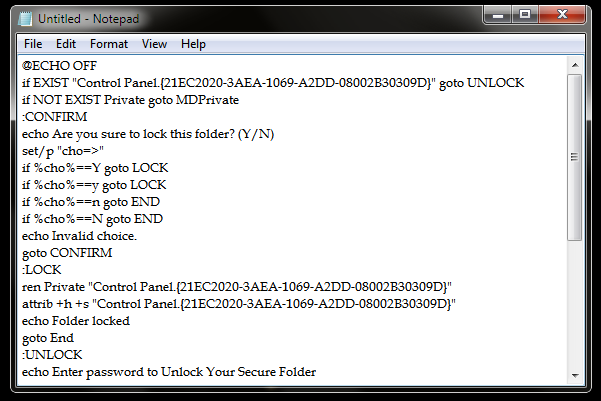
Step 1. Click Start and Open NotepadCopy the below code and paste it into the notepad.

Notepad


@ECHO OFF
if EXIST "Control Panel.{21EC2020-3AEA-1069-A2DD-08002B30309D}" goto UNLOCK
if NOT EXIST Private goto MDPrivate
:CONFIRM
echo Are you sure to lock this folder? (Y/N)
set/p "cho=>"
if %cho%==Y goto LOCK
if %cho%==y goto LOCK
if %cho%==n goto END
if %cho%==N goto END
echo Invalid choice.
goto CONFIRM
:LOCK
ren Private "Control Panel.{21EC2020-3AEA-1069-A2DD-08002B30309D}"
attrib +h +s "Control Panel.{21EC2020-3AEA-1069-A2DD-08002B30309D}"
echo Folder locked
goto End
:UNLOCK
echo Enter password to Unlock Your Secure Folder
set/p "pass=>"
if NOT %pass%== cybomaniacxgoto FAIL
attrib -h -s "Control Panel.{21EC2020-3AEA-1069-A2DD-08002B30309D}"
ren "Control Panel.{21EC2020-3AEA-1069-A2DD-08002B30309D}" Private
echo Folder Unlocked successfully
goto End
:FAIL
echo Invalid password
goto end
:MDPrivate
md Private
echo Private created successfully
goto End
:End

Folderlock


Note: You can change the password with your desired one you just need to edit this line “if NOT %pass%== cybomaniacx goto FAIL” . You can replace “cybomaniacx” with your password.

Step 2. Now save it as Folderlock.bat.

Step 3. Now run the FolderLock.bat at the saved location now a folder named “Private” will be created in that directory.

Step 4. Now place your files which you want to protect in the “Private” folder. Now again double click the Folderlock file and it will ask you “do you want to lock (Y/N)”.

Step 5. Type Y and then press enter, Folder “Private” will then get hidden.

Step 6. Now again click on the FolderLock.bat file and it will ask you the unlock password and the password is cybomaniacx.

That’s it! Your folder is now secured with the password every time you want to secure your files run the FolderLock.bat and place your files in the “Private” folder and again run FolderLock.bat file which will hide the folder “Private“.

By this, your content will be safe and password protected and will be not visible to anyone else and can’t be accessed by any unauthorised access. And it is very simple and easy method to secure your data as there is no requirement of any software in it only just a batch code to protect your data.

Try not to save this file in desktop or on the drive where your operating system has been installed because if you did so, then whenever your operating system corrupts, all your protected data will be deleted, so save this file in any other drive as it will remain as such in that drive either your windows get corrupted.

Saturday, May 16, 2020

How to Enable Windows Photo Viewer in Windows 10


How to Enable Windows Photo Viewer in Windows 10


Windows Photo Viewer is available as an option if the device was upgraded from an earlier version of Windows, e.g. Windows 7, you would see the Windows Photo Viewer directly in the Default Apps menu under Settings. If you have installed Windows 10 from scratch, you need to follow these steps to activate it:

§ Download these Activate Windows Photo Viewer on Windows-10 for the Windows photo viewer

§ Extract and double click on the “Activate Windows Photo Viewer on Windows 10” file

§ Now Registry of Windows Photo Viewer will be added. You need to make it as default now, for this go to Control Panel\Default Programs\Set Default Programs. Find the Windows Photo Viewer from the list and after selecting it, click on “Set This Program as Default”. Now you are done.

§ Next, restart your computer and your beloved Windows photo Viewer should be back. And if you wish to deactivate it, just run the ‘Deactivate Windows Photo Viewer on Windows 10’ file and restart your system.


How to Track Anyone by Sending Them a Message

How to Track Anyone by Sending Them a Message  1) Go to Grabify ( https://grabify.link/ ) and make your account there by clicking on registe...